

Before you start
You need
A LessonHQ account (the Go Live button shows when you are signed in) and a saved slide deck or lesson pack to present.
Students need
A phone, tablet, Chromebook or laptop with a web browser. No account, no app, no email address. Students without a device can share one in a pair or group.
Good to know
There is no Teams app to install. You share your browser window in the call, and students answer at lessonhq.us/live. The slides stay on your shared screen; students' devices show the questions.
Step by step
Set this up before students arrive in the call. It takes about a minute.
Open your deck in Present mode
From your dashboard, click ▶ Present on a saved slide deck or lesson pack. It opens in a new tab.
Click Go Live
Click Go Live at the top right. A box appears at the top left with the join address, a 5-character code and a QR code, plus a count of who has joined. The controls for questions sit at the bottom left.
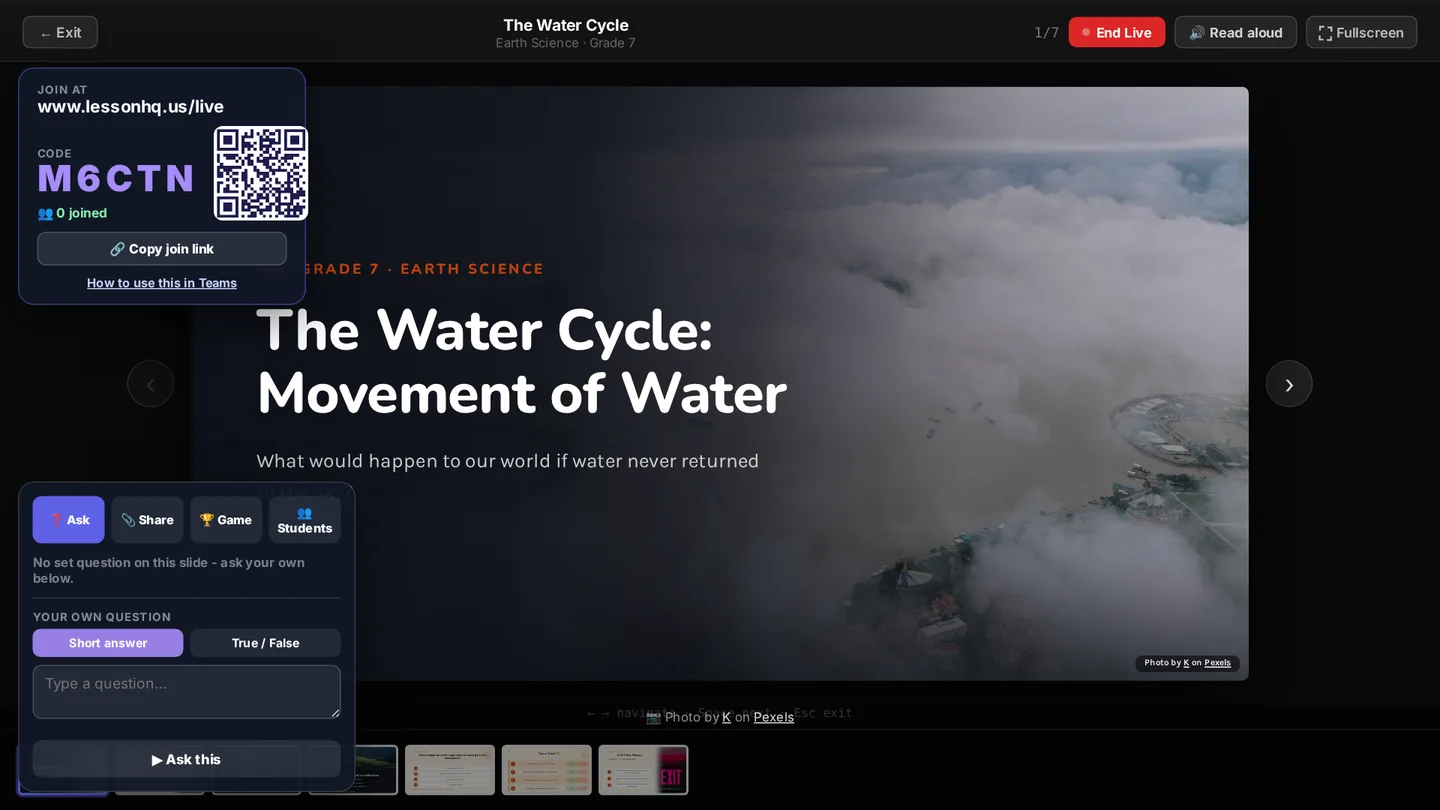
Present mode with Live switched on. The join box stays on screen so students who join late can see the code; click Hide to fold it into a small tab. Share the window in your Teams call
In your Teams meeting, click Share and choose the browser window with your slides. Sharing one window, rather than your whole screen, keeps your email and other tabs private. Click the Fullscreen button in LessonHQ if you want the slides as big as possible.
Then click 🔗 Copy join link in the join box and paste it into the meeting chat. Students at home can click it and the code is filled in for them.
Google Meet: click Share screen and choose the window or tab with your slides. In the classroom: put the slides on the board; students scan the QR code.
Students join on their own device
Students go to lessonhq.us/live (or scan the QR code), type the code and their first name and initial, and tap Join. They then see a "Follow along on the board" screen until you send a question.
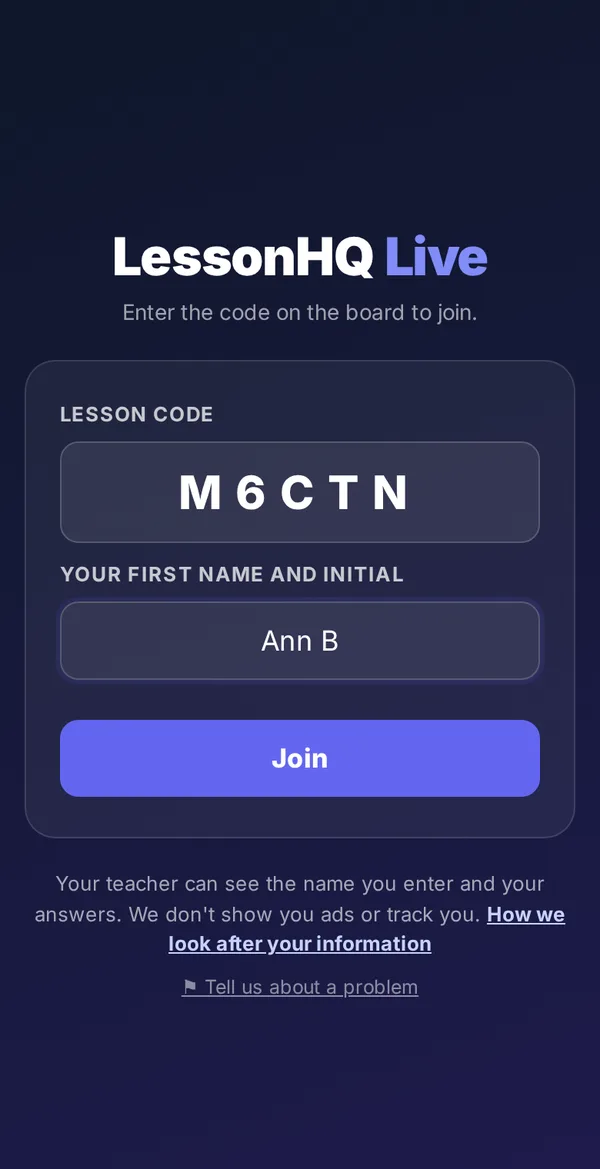
Joining: code and first name only. 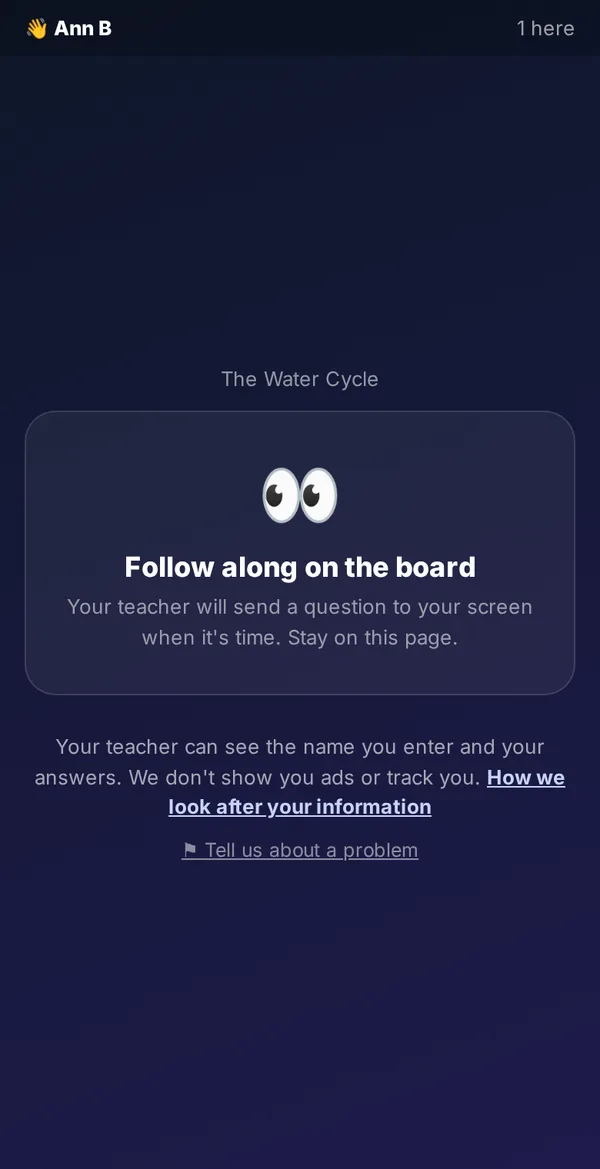
Waiting for your question. Ask the class
When a slide has a question on it, the Ask tab shows ▶ Ask the class. LessonHQ reads the question from the slide: true or false statements, matching tasks and quiz questions become tap-to-answer questions, the hinge question in a lesson pack becomes a single A, B, C or D question, and exit tickets and retrieval questions become short written answers.
No question on the slide? Type your own as a short answer or a true or false statement and click ▶ Ask this. Students can only answer while a question is open.
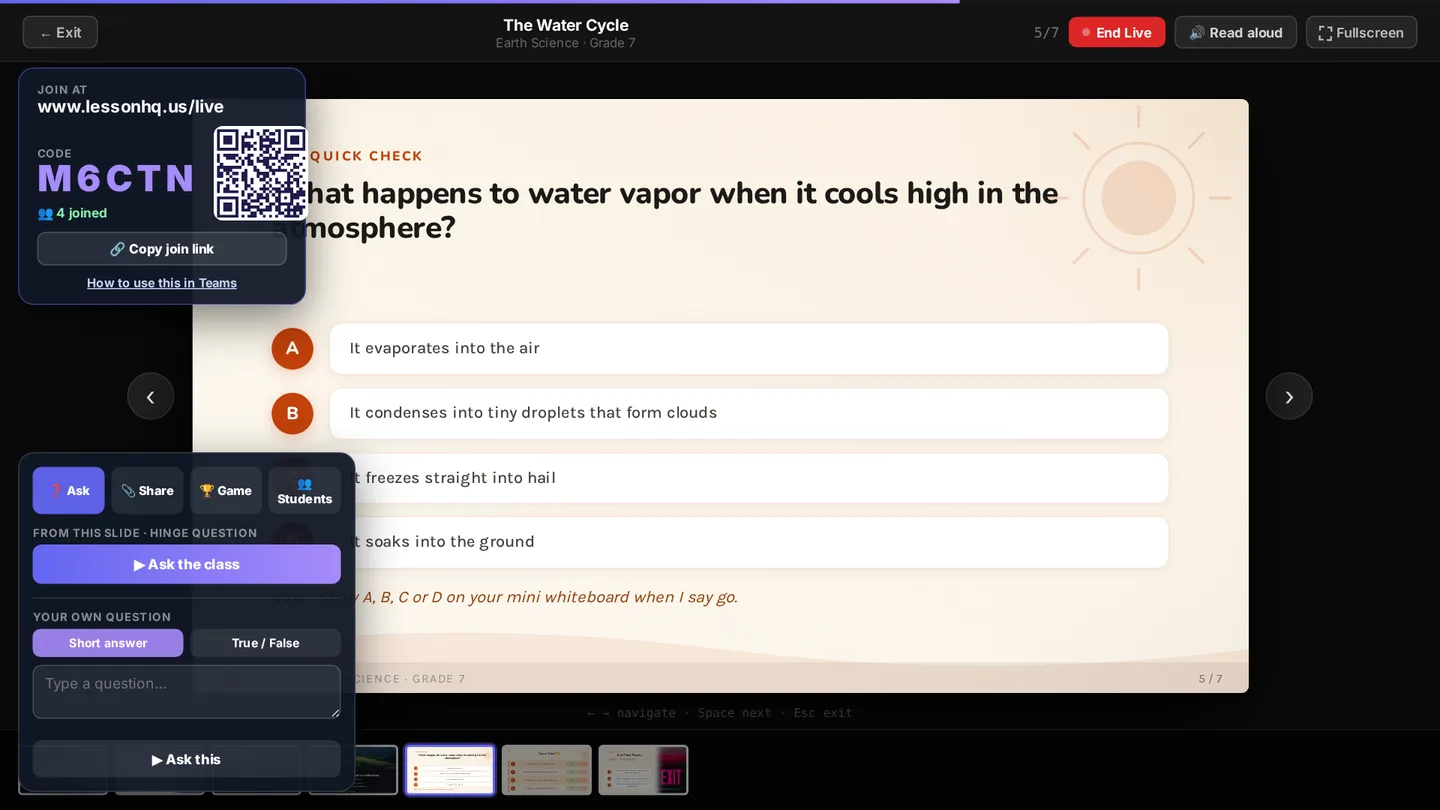
A hinge question, ready to send to every device. Watch the answers come in
Each answer is counted as it arrives, with a bar for every option. The correct answer is not sent to students' devices until you reveal it, and your answers panel shows no tick until then either, so nobody can spot it early on the shared screen.
Written answers are hidden from the board until you click Show answers, and names are left off unless you switch them on in the Students tab. That matters in a Teams call, because everyone sees your shared screen.
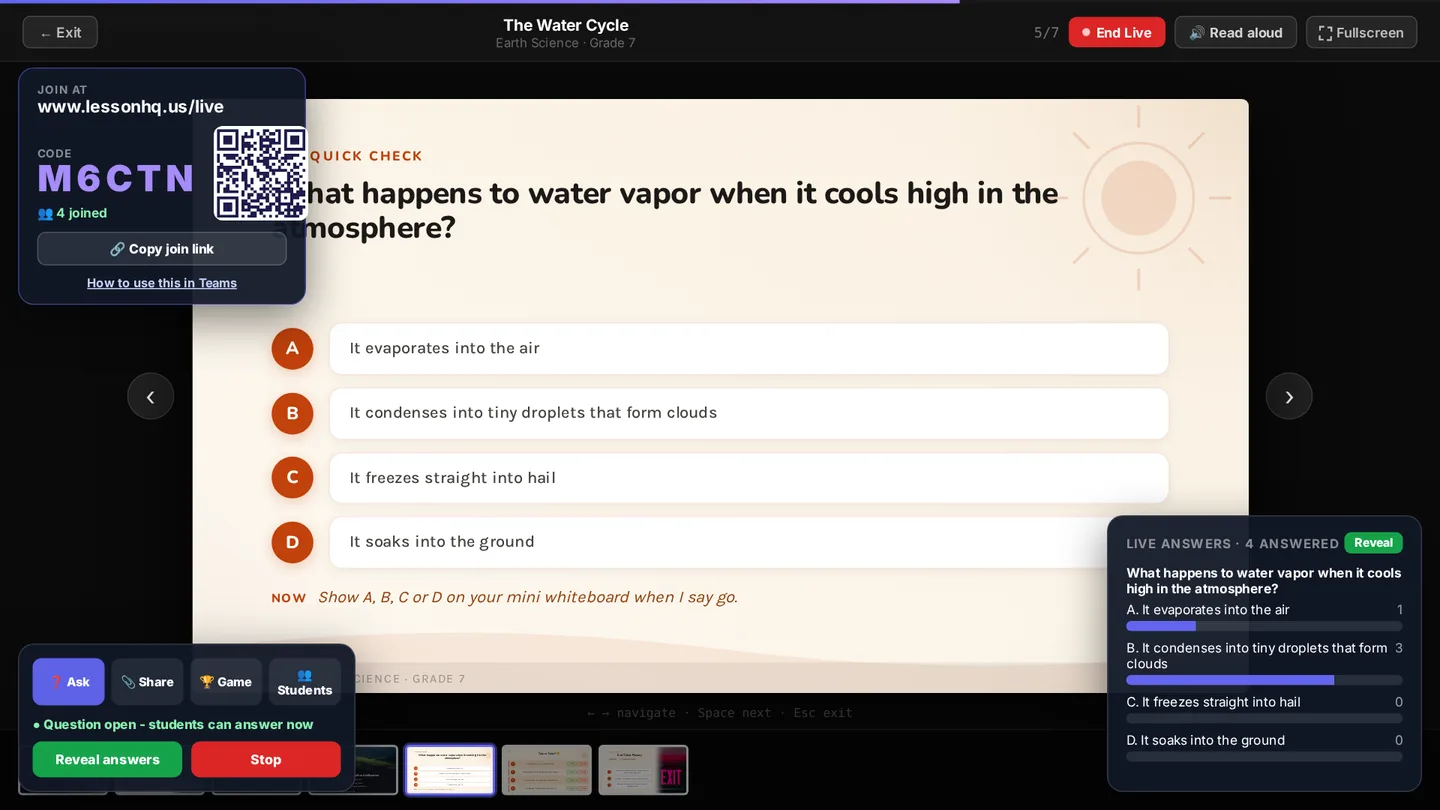
Answers counted live, before the reveal. 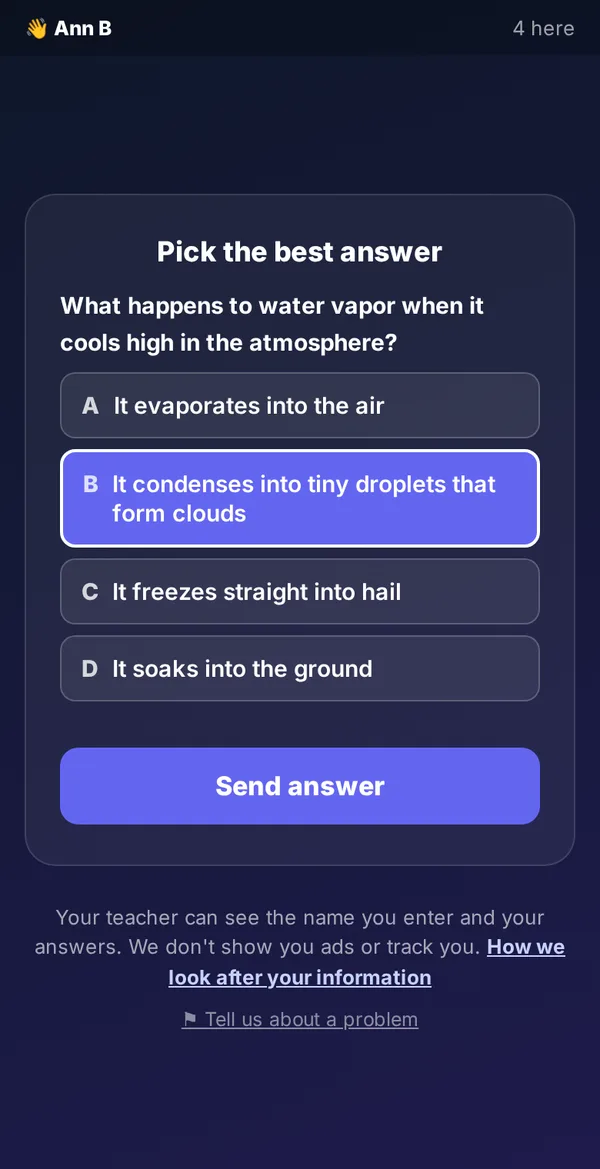
What students see. Reveal, then talk about it
Click Reveal answers. The correct answer is marked with a tick on your screen, and each student sees whether they were right. For a hinge question, the slide's teacher notes say what each wrong option usually means, so you know what to re-teach.
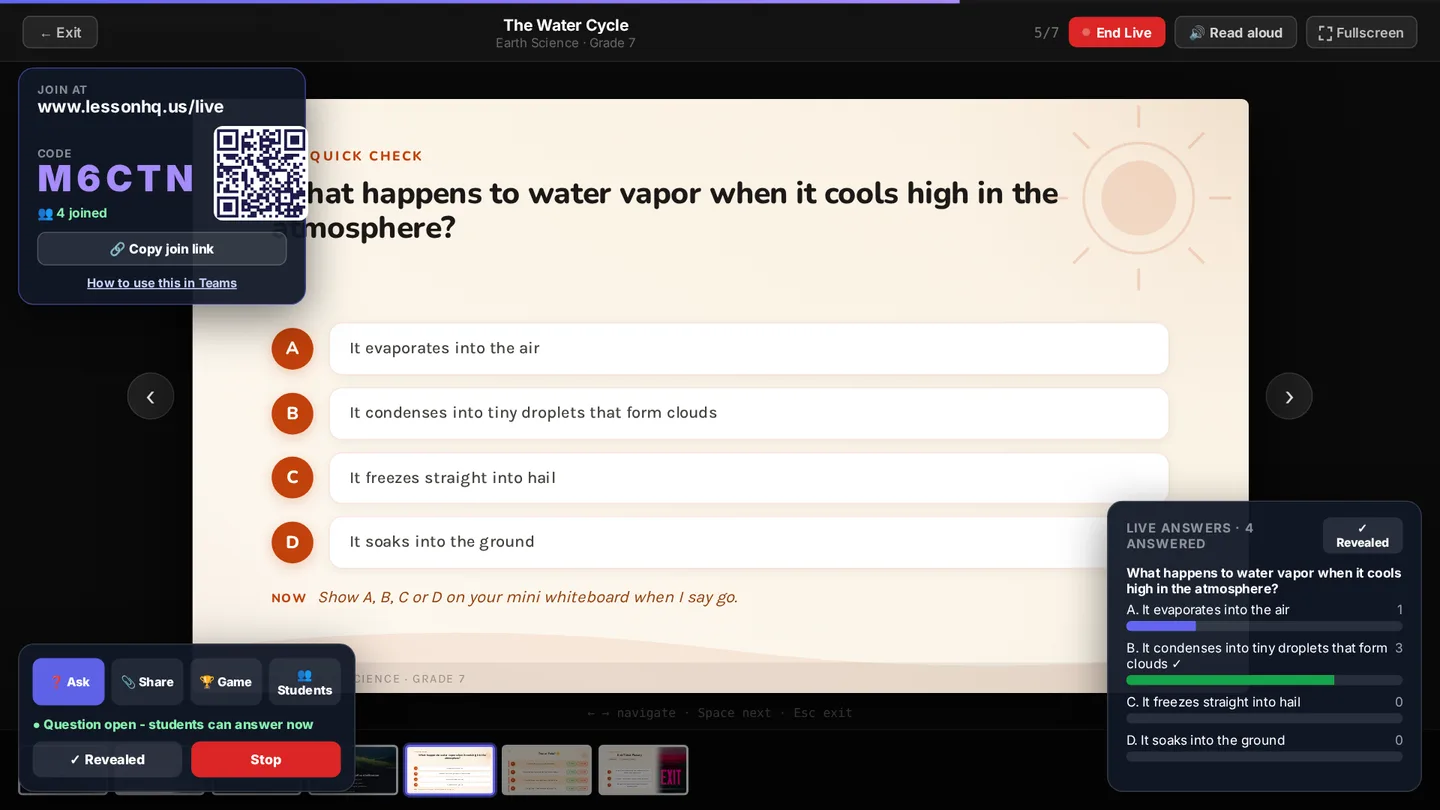
After the reveal. 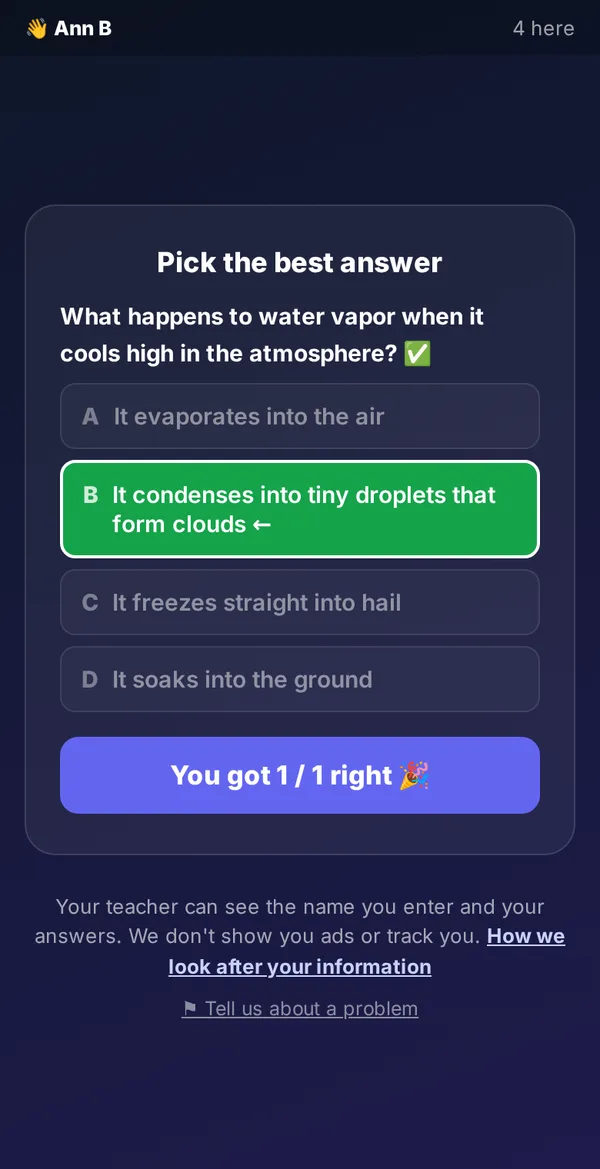
Instant feedback for each student. End Live and look at the report
Click End Live. Once students have joined, a Live class report opens with scores, who may need follow-up and any written answers. If students answered anything, the report is saved to your account and you can find it again under Live class reports.
Remember to stop sharing in Teams before you close the report if it shows names you don't want the class to see.
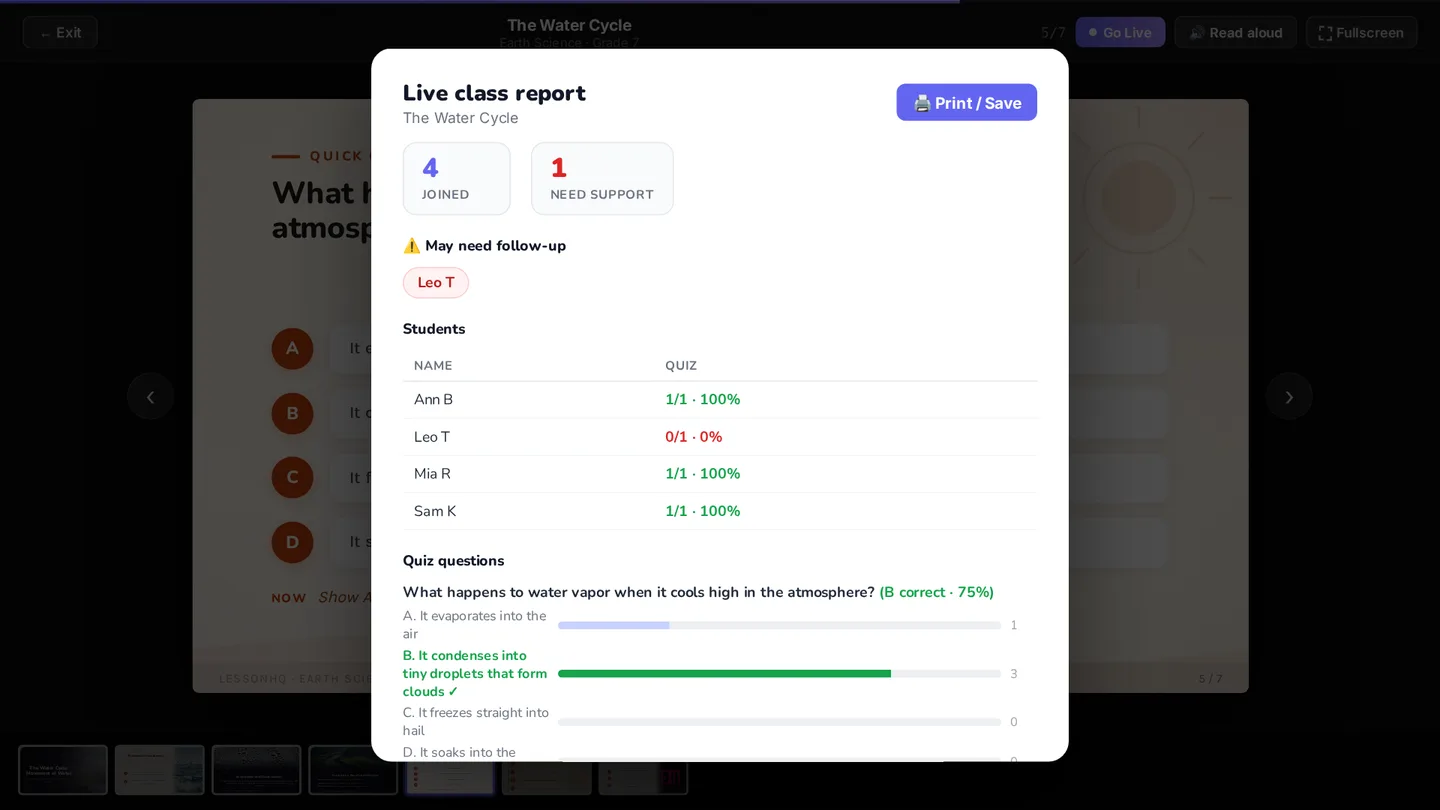
The report uses made-up test names in this example.
Other things you can do while you are live
Share a link
Paste a link to a worksheet, a Google Doc or a website in the Share tab and it appears on every student's screen for the rest of the class.
Points and a timer
Both are off unless you turn them on in the Game tab. Points go to correct answers on true or false and multiple choice questions when you reveal, and students see a top 5 of first names. The timer can be 10, 20, 30 or 60 seconds.
Remove a student
The Students tab lists who has joined. Remove takes a student out of the class, deletes their answers and stops that device rejoining.
What happens to students' information
- No accounts. Students only type a name (we ask for first name and initial) and their answers. We don't ask for an email address, a password or a date of birth.
- During the class the name and answers are held only for the session. So a class can carry on after a page reload, your browser keeps an encrypted copy that only our server can open. It is cleared when you end the class and expires 4 hours after its last update.
- When you end the class and students have answered something, a summary is saved to your LessonHQ account: scores, who may need follow-up, and written answers with the name each student typed.
- No ads or tracking on the student page. Google Analytics, the Meta Pixel and our help chat never load on lessonhq.us/live, and it uses our own copy of its fonts.
- Safety controls. Offensive names are refused when a student joins, strong swear words in written answers are masked on your screen, written answers stay off the board until you show them, and you can remove anyone.
- On a shared device the student page remembers its place only in that browser tab, and forgets it when the tab is closed.
The full detail is in our privacy policy. Schools checking LessonHQ can also read our Security and School IT pages.
Troubleshooting
"That code isn't live"
Check the code on the board. Codes never use the easily confused O, 0, I or 1. A code stops working when you click End Live, so if you start again, students need the new code.
School wifi or content filter
The student page runs on lessonhq.us over normal secure web traffic, with nothing to install. A whole class can join at once from the same school network. If the site is blocked, send your IT team our School IT page, which lists the domains to allow.
Students without a device
Put students in pairs or small groups on one device and ask them to type a group name. The question is on the slide too, so anyone can answer on a mini whiteboard and you can still read the room.
A hybrid class
Students in the room scan the QR code on the board; students at home click the join link in the Teams chat. Everyone joins the same class with the same code. A shared screen in a call can lag a little behind the room, so give a few extra seconds before you reveal.
The page reloaded or dropped out
Open the deck in Present mode again and LessonHQ rejoins your running class, with its answers. Students' pages reconnect on their own. If an answer doesn't send, the student sees a message and can send it again.
The join box covers my slide
The join box and controls sit in the corners. Once everyone has joined, click Hide on the join box: it folds into a small tab that still shows the code, and Show join box brings it back. Click a tab in the controls (for example Ask) to fold that panel away, or use Fullscreen so the slide has more room.
Questions about Live in Teams
Is there a LessonHQ app for Microsoft Teams?
No, and you don't need one. You present from your web browser and share that window in your Teams call. Students join on their own devices at lessonhq.us/live, in any web browser.
Do students need an account or an app?
No. Students open lessonhq.us/live (or scan the QR code), type the 5-character code and their first name and initial. Nothing to install and no sign-in.
Do students see the slides on their own device?
No. Their device shows a "Follow along on the board" screen, the questions you send, and any links you share. The slides stay on the board or on your shared screen in the call, so keep sharing while the class runs.
Does it work in Google Meet or in the classroom?
Yes. In Google Meet, share the window or tab with your slides. In the classroom, put the slides on the projector or board and students scan the QR code. Students at home and students in the room can join the same class with the same code.
What do I need to use Live?
A LessonHQ account (sign in to see the Go Live button), a saved slide deck or lesson pack to present, and a device with a web browser for each student or group.
Share this guide with colleagues
Download the one-page version to print or send round your school or district.